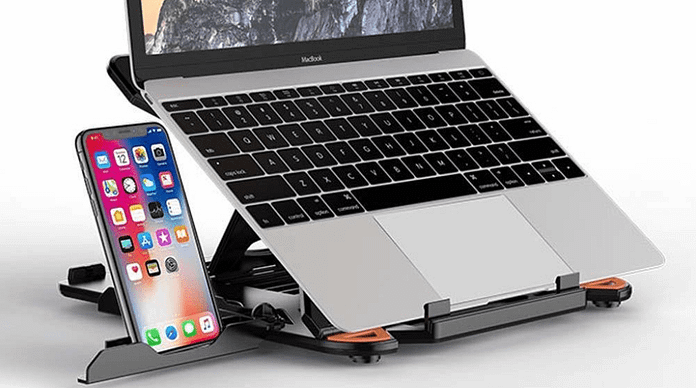
Laptop stands are everywhere – cheap aluminum risers, adjustable arms, cooling pads with built-in fans. Vendors claim they “boost cooling,” but do laptop stands actually help a laptop stay cool, or is it just ergonomics marketing?
This guide answers that question with the physics and the real-world numbers: what a stand does to airflow, when it measurably drops temperatures, when you need an active cooler instead, and how it compares to simply cleaning your fans.
Quick Answer: Yes, laptop stands help cooling – modestly. Elevating the rear of the laptop by a few centimeters improves airflow into the intake vents and typically drops sustained CPU/GPU temperatures by 2-8 degrees Celsius. It will not fix dust-clogged fans or heavy gaming heat, but for everyday work it is the cheapest, most reliable thermal upgrade. A fan-driven cooling pad adds a little more, and regular cleaning adds the most.
Table Of Content
- Why Laptops Overheat in the First Place
- How a Laptop Stand Helps Cooling
- Laptop Stand vs. Cooling Pad: Which Cools Better?
- When a Cooling Pad Is the Better Buy
- When a Stand Alone Is Enough
- The Fixes That Beat Any Stand or Pad
- Are Your Temperatures Actually Bad?
- The Ergonomics Bonus You Should Not Ignore
- FAQs
- Conclusion: Do Laptop Stands Help Cooling?
Why Laptops Overheat in the First Place
To judge any cooling accessory, you first need to know where the heat comes from and how it leaves:
- Heat sources: the CPU and GPU convert electricity into heat while computing. Newer chips boost aggressively, then slow down (throttle) when they hit a temperature ceiling.
- Heat path: heat moves through a heat sink into one or more heat pipes, ending at a fin stack that small fans blow air through.
- The choke point: almost every laptop pulls air through grilles on the bottom edge. If that intake is flat against a desk, soft bed, or your lap, the fan is literally fighting for air.
That last point is exactly where a stand helps – and where a stand is still only one of several fixes.
How a Laptop Stand Helps Cooling
1. It opens up the intake vents
Most laptops draw cooling air from the bottom. Placed flat on a desk, the gap underneath is a few millimeters; on fabric, it is effectively zero. Raising the rear edge increases intake clearance, so the fans get the airflow they were designed for. This is why the same laptop runs hotter on a bed or couch than on a hard desk.
2. It lets hot air escape instead of recirculating
Exhaust air tends to linger in the thin space under a laptop. Elevation lets that warm air move away, so the fan re-ingests less of its own exhaust – less recirculation means lower sustained temperatures.
3. It improves airflow past the chassis
An elevated laptop also benefits from normal room convection: warm air around the body rises and cooler air moves in underneath, which passively helps passive-cooled or low-power machines the most.
Realistic gains: independent reviews consistently measure 2-8 degrees Celsius of improvement under sustained load, with the biggest wins on thin laptops that sit directly on soft surfaces. It is real, measurable relief – not a magic fix.
Laptop Stand vs. Cooling Pad: Which Cools Better?
A stand is passive – it only changes geometry. A cooling pad is active – it adds its own fans. Here is how they compare:
| Feature | Riser / Laptop Stand | Fan Cooling Pad |
|---|---|---|
| Temperature drop | 2-8 degrees C | 3-10 degrees C (varies by laptop intake design) |
| Noise | Silent | Adds 1-2 small fan sounds |
| Power | None | Needs a USB port |
| Portability | Very light, folds flat | Bulkier |
| Ergonomics | Raises screen toward eye level | Usually keeps screen low |
| Best for | Everyday work, thin laptops | Gaming laptops, sustained rendering |
| Typical price | 20-40 USD | 25-60 USD |
Important nuance: cooling pads only help if your laptop has bottom intakes. If a gaming laptop pulls air from the keyboard deck and rear (common on high-end models), a pad’s fans can do little or even recirculate warm air. Check where your intakes are before buying.
When a Cooling Pad Is the Better Buy
- Gaming on a mid-range laptop: chassis fans are already at maximum; extra forced airflow through bottom intakes still trumps a few degrees.
- Long rendering or video exports: anything that keeps the CPU out of its throttle ceiling shortens render times. (See our guide on choosing a laptop for graphic design.)
- Hot rooms, no air conditioning: extra airflow helps push heat out faster in a warm environment.
When a Stand Alone Is Enough
- Browsing, office work, coding: an elevated thin-and-light usually stays well below throttle levels.
- You also want ergonomics: a stand doubles as a posture fix – screen closer to eye level, neck straighter. Details in our ergonomic desk setup guide.
- You want silence: no extra fans, no USB power draw.
If you use a laptop with an external monitor anyway, the stand becomes even more useful – it turns the laptop into a semi-docked workstation. See our dual monitor workspace guide.
The Fixes That Beat Any Stand or Pad
A stand helps airflow, but the biggest temperature drops come from maintenance. In order of impact:
- Clean the fans and vents: compressed air through the exhaust every few months restores cooling that dust has silently stolen. This alone often drops temperatures 5-15 degrees C on an old machine.
- Replace dried thermal paste: after 3-5 years, paste hardens and heat transfer suffers. Fresh paste is the single biggest fix for an aging laptop.
- Undervolt or cap CPU power: modern CPUs accept small performance limits that cut peak heat dramatically with little real-world slowdown.
- Control background load: browser tabs, crypto-jacking scripts, and sync apps keep the CPU hot at “idle”. Task Manager (Windows) or Activity Monitor (macOS) reveals the culprits.
- Use it on hard surfaces: a bed or pillow blocks intakes no stand can fully rescue.
Are Your Temperatures Actually Bad?
Check with HWMonitor, HWiNFO, or Ryzen Master / Intel XTU before spending money:
| Load | Healthy CPU Temperature | Concerning |
|---|---|---|
| Idle / browsing | Below 60 degrees C | Over 80 degrees C |
| Sustained work / export | 70-85 degrees C | Over 95 degrees C |
| Gaming / rendering | 80-90 degrees C | Constant 95 degrees C+ with clock drops (throttling) |
Many modern gaming laptops run into the high 80s by design – that is normal. Only sustained peaks at the thermal limit with dropped clock speeds mean you have a real problem.
The Ergonomics Bonus You Should Not Ignore

Even if the thermal gain were zero, a stand would still earn its price:
- Screen closer to eye level – less neck flexion over long days.
- Better typing angle when paired with an external keyboard and mouse (the ideal laptop setup).
- More desk airflow and less cable clutter under the chassis.
Pair a stand with an external display for the full setup – our dual workspace guide covers the details.
FAQs
Q: Do laptop stands really lower temperatures?
A: Yes, usually by 2-8 degrees C under load, because the bottom intake vents get clear airflow. The gain is largest on thin laptops and worst on machines whose intakes are not on the bottom.
Q: Is a cooling pad better than a stand?
A: Only slightly, and only for laptops with bottom intakes under sustained heavy load. For everyday work, a silent passive stand wins on comfort, noise, and ergonomics.
Q: Can a cooling pad improve gaming or rendering performance?
A: Indirectly, yes. If heat throttling is dropping your clock speeds, keeping temperatures lower keeps performance more consistent. It will not exceed the laptop’s hardware limits.
Q: Do I need a stand if my laptop has good thermals?
A: Not for cooling – but for posture, yes. Raising the screen toward eye level is the main reason ergonomists recommend laptop stands.
Q: How can I cool my laptop without buying anything?
A: Use a hard flat surface, prop the rear edge on two books as a DIY riser, clean the vents with compressed air, and close background apps. Those four free steps fix most overheating complaints.
Q: Are cheap plastic stands any good?
A: They work – elevation is what matters, not the material. Metal stands are sturdier and lighter per dollar, but a 10-dollar plastic riser delivers most of the same cooling benefit.
Conclusion: Do Laptop Stands Help Cooling?
Yes – a laptop stand is a real but modest cooling upgrade. By opening the bottom intake vents it typically trims 2-8 degrees Celsius under load, and it fixes posture at the same time. For gaming laptops and long renders, add a fan cooling pad; for any machine more than three years old, cleaning and fresh thermal paste will beat every accessory on this page.
Start with maintenance, elevate the laptop, and only then decide whether you need active cooling. That order gets you the biggest temperature drop for the least money.